Self-host Nextcloud
Files, sync, calendars and contacts on your own server, like Dropbox or iCloud.
Shelley handles the setup. About 15 minutes. Needs a 100 GB disk: Shelley sends you a link to grow it.
Prefer a terminal?
curl -fsSL https://exe-staging.dev/deploy/nextcloud/prompt.txt | ssh exe.dev new --disk=100GB --prompt=/dev/stdinNextcloud is the open-source alternative to Dropbox and Google Drive: a web interface for your files, desktop and phone apps that keep folders in sync, share links, and calendars, contacts and tasks over CalDAV and CardDAV. Hundreds of apps add more, from notes to an office suite.
On an exe.dev VM it gets a real, growable disk, HTTPS with no setup, and stays private behind your exe.dev login until you decide otherwise. This recipe runs Nextcloud's community Docker image with PostgreSQL and Redis, runs background jobs from a systemd timer, and backs up the database every night. Shelley sets it up, and can take updates and backups off your hands later.
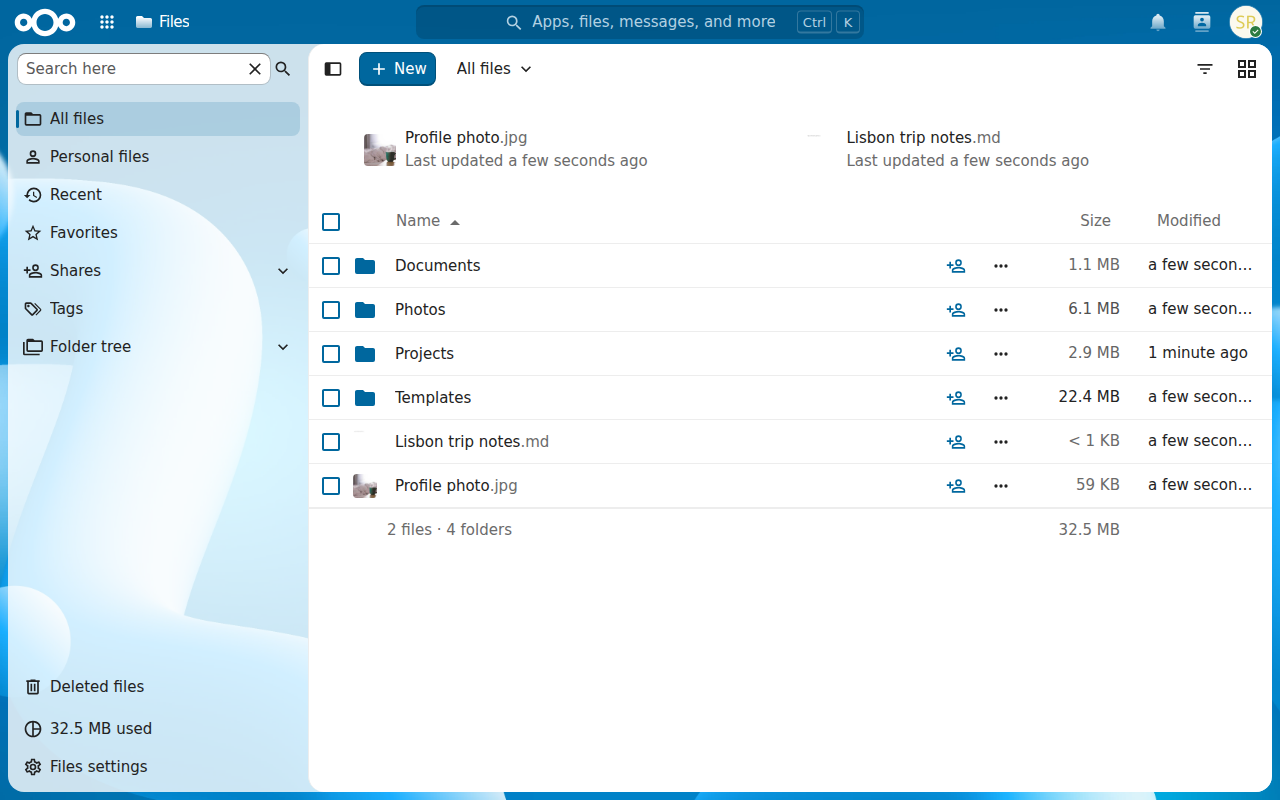
What you get#
- Nextcloud 35 on PostgreSQL 18 and Redis, set up for exe.dev's HTTPS proxy, back after a reboot.
- An admin account whose password is in ~/nextcloud/admin-password (mode 600).
- Background jobs every 5 minutes from a systemd timer, not from page views.
- CalDAV and CardDAV discovery that answers with https:// links, so calendar apps find it.
- Nightly backups of the database and settings, with one restored into a scratch database.
What's running, and where
https://my-nextcloud.exe.xyz/
The web interface, behind exe.dev login and Nextcloud's own
https://my-nextcloud.exe.xyz/remote.php/dav/
WebDAV, CalDAV and CardDAV, for tools that send an exe.dev VM token
https://my-nextcloud.exe.xyz/
Everything, for the desktop and phone apps, once you choose to open it
Deploy with Shelley#
Click Deploy and Shelley will set up Nextcloud on a new VM, then check that it works. No config-file wrangling required.
Nextcloud needs a 100 GB disk, more than a new VM has. Shelley checks first and, if it's too small, gives you a link to grow it; the terminal command below makes the VM that size from the start.
Prefer a terminal?
curl -fsSL \
  https://exe-staging.dev/deploy/nextcloud/prompt.txt \
  | ssh exe.dev new --disk=100GB --prompt=/dev/stdin
What Shelley is told
Set up Nextcloud on this VM by following the exe.dev recipe at https://exe-staging.dev/deploy/nextcloud.md?via=deploy from top to bottom.

The recipe's example VM name is my-nextcloud. This VM's name is the output of `hostname`: use it wherever the recipe writes my-nextcloud. Skip the step that creates the VM; you are on it.

This recipe needs a 100GB disk, and a new VM's may be smaller. Before you install anything, run `df -h /`. If its size is under 90G, stop and ask me to grow the disk, either with this link: https://exe.dev/suggest?command=resize%20my-nextcloud%20--disk%3D100GB or, on my computer, with `ssh exe.dev resize my-nextcloud --disk=100GB`. When I say it's done, run `sudo resize2fs "$(findmnt -no SOURCE /)"`, check `df -h /` again, and carry on.

You are done when all of these are true. Check each one yourself:
- Nextcloud 35 on PostgreSQL 18 and Redis, set up for exe.dev's HTTPS proxy, back after a reboot.
- An admin account whose password is in ~/nextcloud/admin-password (mode 600).
- Background jobs every 5 minutes from a systemd timer, not from page views.
- CalDAV and CardDAV discovery that answers with https:// links, so calendar apps find it.
- Nightly backups of the database and settings, with one restored into a scratch database.

Read the whole recipe, including the closed details. For initial setup,
follow "Install by hand" from "Check the disk and memory" on, skipping
VM creation and SSH: Docker, the settings, the Apache snippet, the
Compose stack, the first start, the background-jobs timer, the backup
timer and the backup test. The walkthrough at the top is for the owner
afterwards.
Work as exedev in ~/nextcloud. Never overwrite an existing .env or
admin-password. Don't create users, app passwords or VM tokens, install
Nextcloud Office, set up email or S3, or change the image tag. Don't run
Restore or Update. Leave the VM private; making it public is the
owner's choice (see "Choose who can reach it").
Verify docker.service is enabled, all three containers are up,
status.php on localhost:8000 says installed true with the VM's
hostname, the cron timer has run cron.php once, the backup timer is
enabled and the backup test passes. Do not reboot.
Never paste the admin password into the chat; say it's in
~/nextcloud/admin-password. Finish by pointing the owner to "Sign in
and upload" and "Choose who can reach it".

Finish with the URLs I should open.
Also at /deploy/nextcloud/prompt.txt. The recipe it follows is /deploy/nextcloud.md.
Sign in and upload#
The VM starts private: only you, signed in to exe.dev, can open it. On your
computer, read the admin password Shelley made, then open
https://my-nextcloud.exe.xyz/:
ssh my-nextcloud.exe.xyz cat nextcloud/admin-password
Sign in as admin with it. Drag files into Files, or use + New →
Upload files. Uploads go in pieces, so big files are fine.
Use admin for administration only. Make yourself an everyday account:
click the avatar at the top right, then Accounts → New account, and
sign in with that.
Choose who can reach it#
The web interface works through exe.dev's login. Nextcloud's desktop and phone apps, and the calendar and contacts apps on phones and laptops, don't: they talk to the server directly and can't sign in to exe.dev first. So pick one:
- Private (the default). Only you and people you share the VM with reach it, in a browser. Scripts and tools that can add a header, like rclone and curl, can use it too, with a VM token. Pick this for a personal file store you use in the browser.
- Public. Anyone can reach the login page; Nextcloud's own login and brute-force protection guard it. The desktop and phone apps, calendar apps, share links for people without exe.dev accounts, and Nextcloud Office all need this. Pick this for a Dropbox replacement.
To make it public, on your computer:
ssh exe.dev share set-public my-nextcloud
ssh exe.dev share set-private my-nextcloud closes it again. Before you
open it, turn on two-factor login for each account: TOTP (Authenticator
app) under Personal settings → Security (just Settings for
everyone but admins).
Sync with the desktop and phone apps#
With the VM public, install the
Nextcloud apps and enter
https://my-nextcloud.exe.xyz as the server address. The app opens a
browser page; sign in there and click Grant access. The app gets a
password of its own, which you can revoke from Personal settings →
Security → Devices & sessions without touching your real password.
We tested the login flow, and two-way sync with Nextcloud's Linux sync client: uploads, edits made in the browser, and deletes all came through.
Sync from scripts on a private VM#
Nextcloud speaks WebDAV, so any WebDAV tool reaches your files. On a
private VM, a request needs two credentials: an exe.dev
VM token in X-Exedev-Authorization, and a
Nextcloud app password in the usual Authorization header.
-
In Nextcloud, Personal settings → Security → Devices & sessions, type a name such as
rcloneand click Create new app password. Note the username and password it shows. -
On your computer, make a VM token:
ssh exe.dev ssh-key generate-api-key --vm=my-nextcloud --label=nextcloud-rclone --exp=1y
Try it with curl (put your username, app password and token in the shell variables first):
curl -s -X PROPFIND -H 'Depth: 1' \
  -H "X-Exedev-Authorization: Bearer $EXE_TOKEN" \
  -u "$NC_USER:$NC_APP_PASSWORD" \
  "https://my-nextcloud.exe.xyz/remote.php/dav/files/$NC_USER/" | head -c 300
Expect XML starting <?xml, a 207 listing of your files. Without the
token you get exe.dev's 401; without the app password, Nextcloud's.
rclone syncs folders both ways. Set it up once, then pass the token on each run:
rclone config create nextcloud webdav vendor=nextcloud \
  url=https://my-nextcloud.exe.xyz/remote.php/dav/files/$NC_USER/ \
  user=$NC_USER pass=$NC_APP_PASSWORD --obscure
rclone sync ~/Documents nextcloud:Documents \
  --header "X-Exedev-Authorization: Bearer $EXE_TOKEN" --progress
We synced 52 files, 286 MiB with a 300 MB file among them, in 26 seconds this way, and edits and deletes followed on the next run.
Calendars and contacts#
Nextcloud's Calendar and Contacts apps come installed. To sync them
with other apps, give the server address https://my-nextcloud.exe.xyz
and your username with an app password (as above, one per device). Apps
that ask for a full URL want
https://my-nextcloud.exe.xyz/remote.php/dav/. On an iPhone or Mac, add
a CalDAV account and a CardDAV account; on Android, use
DAVx⁵.
Those apps need the VM public. On a private VM, a script that sends the
VM token works: we listed and created events and contacts with Python's
caldav library and curl, starting from the bare address.
Bring your team#
Make each person an account under Accounts in the avatar menu. On a private VM they also need to get past exe.dev's login; on your computer:
ssh exe.dev share add my-nextcloud friend@example.com
That gives them the web interface, not a shell. On a public VM, the Nextcloud account is enough. Share folders with each other from the share icon next to any file; Share link works for anyone when the VM is public, and only for people who can pass exe.dev's login when it's private.
Edit documents in the browser#
Nextcloud Office (Collabora Online) opens Word, Excel and PowerPoint files, and their OpenDocument cousins, in the browser. The simplest form runs inside the Nextcloud container. It needs the VM public: Nextcloud fetches the office server's settings through the public address, and exe.dev's login turns that away on a private VM. On the VM:
cd ~/nextcloud
docker exec -u www-data nextcloud php occ app:install richdocumentscode
docker exec -u www-data nextcloud php occ app:install richdocuments
docker exec -u www-data nextcloud php occ richdocuments:activate-config \
  --wopi-url="https://$(hostname).exe.xyz/custom_apps/richdocumentscode/proxy.php?req="
Expect ✓ Detected WOPI server: Collabora Online Development Edition. If
it says Failed to fetch discovery endpoint with a timeout instead, the
office server is still starting: open Nextcloud in the browser, wait half
a minute, and run the last command again. Then click a .docx or .odt
file to edit it; we edited both on a test VM. Each open document uses
300-450 MB of memory, so on a small VM keep it to a few people at once.
For a team, Collabora recommends its own server instead of this built-in
one.
Files on disk, or in S3#
Your files are ordinary files in ~/nextcloud/data/<user>/files/ on the
VM's disk. That's this recipe's choice: you can see them, back them up
with any tool, and grow the disk when they grow.
Nextcloud can instead keep files in an S3 bucket as primary storage,
set with OBJECTSTORE_S3_* variables (see the
image's documentation)
before the first start; you can't switch an existing Nextcloud over. The
bucket then holds objects named by number, which only Nextcloud's
database can turn back into files, so losing the database means losing
the files. We didn't test this here. To use a bucket of your own, see
S3 storage, which covers reaching it from another
VM.
To see an existing bucket or server as a folder in Nextcloud, without moving your files, enable the External storage support app instead.
Disk and what it costs#
A new exe.dev VM has a 25 GB disk, and a fresh install already uses 8.5 GB of it: the system, 2.7 GB of images and 0.85 GB of Nextcloud's code (more with Nextcloud Office). That leaves too little for a file store, so this recipe makes the disk 100 GB. That costs nothing up front: exe.dev bills disk by what's used, not its size.
What you use is your files, the old versions Nextcloud keeps of them, and deleted files until the trash bin empties (Nextcloud expires both on its own, sooner when space runs low), and a database of a few hundred MB. Your exe.dev plan includes disk shared by all your VMs: on Personal, 100 GB per 2 vCPU of capacity (100 GB at $15 a month, 200 GB at $35, 400 GB at $75, 800 GB at $155). Beyond that, extra disk is billed per GiB-month at the rate on the pricing page, on your average use over the month (see Usage).
Watch it with df -h / on the VM, or Administration settings → System.
Grow the disk before it fills; on your computer:
ssh exe.dev resize my-nextcloud --disk=300GB
Then on the VM, sudo resize2fs "$(findmnt -no SOURCE /)". Disks only grow.
Keep your files safe#
A systemd timer runs ~/nextcloud/backup.sh every night. It puts Nextcloud
in maintenance mode for the seconds it takes to dump the database, then
saves the dump, Nextcloud's config/ (with the secrets that decrypt
sessions and app passwords), .env, and the Compose file to
~/nextcloud/backups/, keeping two weeks.
Your files in ~/nextcloud/data aren't in it: they're too big to copy
every night onto the same disk. Keep them safe one of two ways:
- Back up the whole VM with VM backups (a preview), which copy the disk to your own S3 bucket, only the changes each time. PostgreSQL recovers from a snapshot as from a power cut, and the snapshot carries last night's dump too.
- Copy the files out with rclone from another computer, as in
Sync from scripts, and copy
~/nextcloud/backups/out withscp.
Keep .env, admin-password and the backups' config/ somewhere safe
off the VM: without config/config.php, a restored database can't be
used. Restore steps are in Back up and restore.
Email (optional)#
Nextcloud emails password resets, share notices and calendar invitations. Without email it works, but those don't go out. To send them, use a transactional email service with SMTP (Postmark, Mailgun, Amazon SES and many others) and enter its server, port and login under Administration settings → Basic settings → Email server; Send email tests it. exe.dev's own email gateway only reaches you and your team, so it isn't a fit here.
The nuts and bolts#
Happy clicking Deploy? You can stop here. These are the same setup steps Shelley follows, plus the maintenance commands for later. Tested with Nextcloud 35.0.3 (PHP 8.5, Apache 2.4), PostgreSQL 18 and Redis 8 on a 2 vCPU, 8 GB exe.dev VM, with Docker 29.1 and Compose 2.40.
Install by hand
Create a VM#
On your computer (pick another name if my-nextcloud is taken):
ssh exe.dev new --name=my-nextcloud --disk=100GB
ssh my-nextcloud.exe.xyz
All remaining installation commands run on the VM, as exedev.
Check the disk and memory#
df -h /
free -g
If Size is under 90G, the VM was made with a smaller disk. Grow it with
this link
(with your VM's name), or on your computer with
ssh exe.dev resize my-nextcloud --disk=100GB. Then, back on the VM:
sudo resize2fs "$(findmnt -no SOURCE /)"
df -h /
Nextcloud, PostgreSQL and Redis use about 200 MB of memory idle, and Nextcloud Office adds 300-450 MB per open document; any exe.dev VM has enough for a few people.
Get Docker ready#
Enable Docker at boot, or exe.dev's on-demand Docker won't start Nextcloud after a reboot:
sudo systemctl enable --now docker.service
systemctl is-enabled docker.service
Expect enabled.
Write the settings#
This makes ~/nextcloud/.env with a random database password and the
VM's address, and admin-password with the first admin password, once,
readable only by you:
mkdir -p ~/nextcloud/apache ~/nextcloud/backups && cd ~/nextcloud
if [ ! -f .env ]; then
  ( umask 077
    cat > .env <<EOF
# Nextcloud on exe.dev: https://exe.dev/deploy/nextcloud
NC_HOST=$(hostname).exe.xyz
POSTGRES_PASSWORD=$(openssl rand -hex 24)
EOF
  )
fi
if [ ! -f admin-password ]; then
  ( umask 077; openssl rand -base64 18 > admin-password )
fi
ls -l .env admin-password
Expect -rw------- twice. The admin password is only read on the first
start; if you change it in Nextcloud later, this file goes stale.
Send calendar apps to https://#
Calendar and contacts apps look for /.well-known/caldav and
/.well-known/carddav. Nextcloud's own redirect for them points at
http://, because Apache behind exe.dev's proxy only sees plain HTTP. This
snippet, mounted into the container, answers with https:// instead:
cat > ~/nextcloud/apache/dav-redirect.conf <<'EOF'
# Send CalDAV/CardDAV discovery to https://, not to the http:// that Apache
# sees behind exe.dev's proxy.
<LocationMatch "^/\.well-known/(caldav|carddav)$">
    Redirect 301 "https://%{HTTP_HOST}/remote.php/dav/"
</LocationMatch>
EOF
Write the Compose file#
Three containers: PostgreSQL, Redis, and Nextcloud with Apache on port
8000, the port behind https://<vm>.exe.xyz/. The environment tells
Nextcloud it's behind an HTTPS proxy: links use https:// and the VM's
name, and the client's real address comes from X-Forwarded-For, which
Nextcloud only believes from Docker's own network:
cat > ~/nextcloud/compose.yaml <<'EOF'
# Nextcloud on exe.dev: https://exe.dev/deploy/nextcloud
services:
  db:
    image: postgres:18-alpine
    restart: unless-stopped
    environment:
      POSTGRES_DB: nextcloud
      POSTGRES_USER: nextcloud
      POSTGRES_PASSWORD: ${POSTGRES_PASSWORD}
    volumes:
      - ./postgres:/var/lib/postgresql
    healthcheck:
      test: ["CMD", "pg_isready", "-U", "nextcloud", "-d", "nextcloud"]
      interval: 10s
      timeout: 5s
      retries: 10

  redis:
    image: redis:8-alpine
    restart: unless-stopped

  app:
    image: nextcloud:35.0.3-apache
    container_name: nextcloud
    restart: unless-stopped
    depends_on:
      db:
        condition: service_healthy
      redis:
        condition: service_started
    ports:
      - "8000:80"
    environment:
      POSTGRES_HOST: db
      POSTGRES_DB: nextcloud
      POSTGRES_USER: nextcloud
      POSTGRES_PASSWORD: ${POSTGRES_PASSWORD}
      REDIS_HOST: redis
      # Read on the first start only, to install Nextcloud.
      NEXTCLOUD_ADMIN_USER: admin
      NEXTCLOUD_ADMIN_PASSWORD_FILE: /run/secrets/admin-password
      NEXTCLOUD_TRUSTED_DOMAINS: ${NC_HOST}
      # exe.dev's proxy serves https://${NC_HOST}/ and sends plain HTTP here.
      OVERWRITEPROTOCOL: https
      OVERWRITECLIURL: https://${NC_HOST}
      TRUSTED_PROXIES: 172.16.0.0/12
      FORWARDED_FOR_HEADERS: HTTP_X_FORWARDED_FOR
      APACHE_DISABLE_REWRITE_IP: "1"
    volumes:
      - ./html:/var/www/html
      - ./data:/var/www/html/data
      - ./admin-password:/run/secrets/admin-password:ro
      - ./apache/dav-redirect.conf:/etc/apache2/conf-enabled/dav-redirect.conf:ro
EOF
Nextcloud's code and settings land in ~/nextcloud/html (with
config/config.php), your files in ~/nextcloud/data, and the database in
~/nextcloud/postgres.
Start Nextcloud#
The first start pulls about 2.7 GB of images and installs Nextcloud, a minute or two:
cd ~/nextcloud
docker compose pull -q
docker compose up -d
until curl -fs -H "Host: $(hostname).exe.xyz" localhost:8000/status.php | grep -q '"installed":true'; do sleep 3; done
curl -s -H "Host: $(hostname).exe.xyz" localhost:8000/status.php; echo
docker compose ps --format '{{.Name}} {{.Status}}'
Expect "installed":true with "versionstring":"35.0.3", and three
containers Up. docker compose logs app should show Nextcloud was successfully installed.
Then a few one-time settings: background jobs by cron (the timer below), heavy maintenance only between 01:00 and 05:00 UTC, and the database indexes and repairs Nextcloud's admin page would otherwise ask for:
occ() { docker exec -u www-data nextcloud php occ "$@"; }
occ background:cron
occ config:system:set maintenance_window_start --type=integer --value=1
occ db:add-missing-indices
occ maintenance:repair --include-expensive > /dev/null
occ config:system:get overwrite.cli.url
occ config:system:get trusted_domains
Expect https:// and the VM's name, then localhost and the VM's name.
Check the redirect for calendar apps:
curl -sI -H "Host: $(hostname).exe.xyz" localhost:8000/.well-known/caldav | grep -i '^location'
Expect Location: https://<vm>.exe.xyz/remote.php/dav/.
Run background jobs every 5 minutes#
Nextcloud's background jobs (trash and version expiry, previews,
notifications, cleanup) run from cron.php. A systemd timer runs it in the
container:
sudo tee /etc/systemd/system/nextcloud-cron.service > /dev/null <<'EOF'
[Unit]
Description=Nextcloud background jobs
Requires=docker.service
After=docker.service

[Service]
Type=oneshot
ExecStart=/usr/bin/docker exec -u www-data nextcloud php -f /var/www/html/cron.php
EOF
sudo tee /etc/systemd/system/nextcloud-cron.timer > /dev/null <<'EOF'
[Unit]
Description=Run Nextcloud background jobs every 5 minutes

[Timer]
OnBootSec=5min
OnUnitActiveSec=5min
AccuracySec=10s

[Install]
WantedBy=timers.target
EOF
sudo systemctl daemon-reload
sudo systemctl enable --now nextcloud-cron.timer
sudo systemctl start nextcloud-cron.service
systemctl show nextcloud-cron.service -p Result
docker exec -u www-data nextcloud php occ config:app:get core lastcron | xargs -I{} date -d @{}
Expect Result=success and the time of that run. Administration
settings → Basic settings shows Cron with a green dot.
Back up every night#
The backup script dumps the database roles and the database with Nextcloud in maintenance mode, then adds the settings:
cat > ~/nextcloud/backup.sh <<'EOF'
#!/bin/bash
# Back up Nextcloud's database and settings (not the files in data/; see
# https://exe.dev/deploy/nextcloud#keep-your-files-safe). Nextcloud is in
# maintenance mode only while the database is dumped. Run with sudo.
set -euo pipefail
cd /home/exedev/nextcloud
stamp=$(date -u +%Y%m%d-%H%M%S)
work=$(mktemp -d)
occ() { docker exec -u www-data nextcloud php occ "$@"; }
trap 'occ maintenance:mode --off > /dev/null || true; rm -rf "$work"' EXIT
occ maintenance:mode --on > /dev/null
docker compose exec -T db pg_dumpall -U nextcloud --roles-only > "$work/roles.sql"
docker compose exec -T db pg_dump -U nextcloud -d nextcloud -Fc > "$work/nextcloud.dump"
occ maintenance:mode --off > /dev/null
cp -a html/config "$work/config"
cp -a compose.yaml .env apache "$work/"
umask 077
tar -C "$work" -czf "backups/nextcloud-$stamp.tar.gz" .
chown exedev: "backups/nextcloud-$stamp.tar.gz"
find backups -name 'nextcloud-*.tar.gz' -mtime +13 -delete
echo "backups/nextcloud-$stamp.tar.gz"
EOF
chmod 755 ~/nextcloud/backup.sh
sudo tee /etc/systemd/system/nextcloud-backup.service > /dev/null <<'EOF'
[Unit]
Description=Back up Nextcloud's database and settings
Requires=docker.service
After=docker.service

[Service]
Type=oneshot
ExecStart=/home/exedev/nextcloud/backup.sh
EOF
sudo tee /etc/systemd/system/nextcloud-backup.timer > /dev/null <<'EOF'
[Unit]
Description=Back up Nextcloud every night

[Timer]
OnCalendar=*-*-* 02:30:00
RandomizedDelaySec=30m
Persistent=true

[Install]
WantedBy=timers.target
EOF
sudo systemctl daemon-reload
sudo systemctl enable --now nextcloud-backup.timer
sudo systemctl start nextcloud-backup.service
ls -l ~/nextcloud/backups
Expect one nextcloud-<date>.tar.gz, -rw-------.
Test the backup#
Restore the newest dump into a scratch PostgreSQL and count what's in it:
latest=$(ls -1t ~/nextcloud/backups/nextcloud-*.tar.gz | head -n 1)
mkdir -p /tmp/nc-restore-test && tar -C /tmp/nc-restore-test -xzf "$latest"
docker run -d --rm --name nc-restore-test -e POSTGRES_PASSWORD=test \
  -e POSTGRES_USER=nextcloud -e POSTGRES_DB=nextcloud postgres:18-alpine > /dev/null
until docker exec nc-restore-test pg_isready -U nextcloud -q; do sleep 1; done; sleep 2
docker exec -i nc-restore-test psql -q -U nextcloud -d postgres < /tmp/nc-restore-test/roles.sql 2>&1 | grep -v 'already exists'
docker exec -i nc-restore-test pg_restore -U nextcloud -d nextcloud < /tmp/nc-restore-test/nextcloud.dump
docker exec nc-restore-test psql -U nextcloud -d nextcloud -tAc "SELECT count(*) || ' accounts' FROM oc_users"
grep -c "'instanceid'" /tmp/nc-restore-test/config/config.php
docker stop nc-restore-test > /dev/null
rm -rf /tmp/nc-restore-test
Expect no errors, 1 accounts (more once you add people) and 1, the
line in config.php that ties the settings to this database.
Installation done. Continue with Sign in and upload.
Back up and restore
A backup now, before anything risky, on the VM:
sudo ~/nextcloud/backup.sh
Roll back the database and settings on the same VM#
This puts the database and config.php back as they were at a backup. Your
files in data/ stay as they are now; Nextcloud then rescans them, so files
added since show up and files deleted since drop out. Shares, versions,
calendars and contacts go back to the backup's time.
cd ~/nextcloud
B=backups/nextcloud-20261121-023012.tar.gz   # the one to restore
mkdir -p /tmp/nc-restore && sudo tar -C /tmp/nc-restore -xzf "$B"
docker compose stop app
docker compose exec -T db psql -U nextcloud -d postgres \
  -c 'DROP DATABASE nextcloud' -c 'CREATE DATABASE nextcloud OWNER nextcloud'
sudo cat /tmp/nc-restore/nextcloud.dump | docker compose exec -T db pg_restore -U nextcloud -d nextcloud
sudo cp -a /tmp/nc-restore/config/config.php html/config/config.php
docker compose start app
sleep 5
occ() { docker exec -u www-data nextcloud php occ "$@"; }
occ maintenance:mode --off
occ maintenance:data-fingerprint
occ files:scan --all
sudo rm -rf /tmp/nc-restore
maintenance:data-fingerprint tells the sync apps the server went back in
time, so they keep their own copies (as conflicts where both changed)
rather than syncing the rollback over your computers.
Restore onto a new VM#
With VM backups, restore the whole VM; on your
computer, ssh exe.dev backup restore <backup> <new-vm>. On the new VM,
change NC_HOST in ~/nextcloud/.env, then add the new name:
cd ~/nextcloud && docker compose up -d
docker exec -u www-data nextcloud php occ config:system:set trusted_domains 2 --value="$(hostname).exe.xyz"
Without VM backups, set up the new VM with Install by hand up to and
including "Write the Compose file", but don't start Nextcloud. Copy your
data/ folder into ~/nextcloud/data and a backup into
~/nextcloud/backups (with scp -r through your computer, or rsync).
Then restore the database and settings before the first start, on the new
VM:
cd ~/nextcloud
B=backups/nextcloud-20261121-023012.tar.gz   # the one to restore
mkdir -p /tmp/nc-restore && tar -C /tmp/nc-restore -xzf "$B"
docker compose up -d db
until docker compose exec db pg_isready -U nextcloud -q; do sleep 1; done; sleep 2
docker compose exec -T db psql -q -U nextcloud -d postgres < /tmp/nc-restore/roles.sql 2>&1 | grep -v 'already exists'
docker compose exec -T db pg_restore -U nextcloud -d nextcloud < /tmp/nc-restore/nextcloud.dump
sudo mkdir -p html && sudo cp -a /tmp/nc-restore/config html/config
sudo chown -R 33:33 html data
docker compose up -d
until curl -fs localhost:8000/status.php; do sleep 3; done; echo
occ() { docker exec -u www-data nextcloud php occ "$@"; }
occ config:system:set trusted_domains 2 --value="$(hostname).exe.xyz"
occ maintenance:data-fingerprint
occ files:scan --all
rm -rf /tmp/nc-restore
Expect "installed":true with your old version. The container sees an
installed config.php and puts the code back around it rather than
installing afresh; until the new name is added, only localhost is a
trusted domain. Then set up the cron and backup timers as in Install
by hand. Accounts, files, shares and app passwords come across; apps you
added from the app store (in html/custom_apps) don't, so install them
again with occ app:install <app>. We moved a test install to a second
VM this way.
Update
Nextcloud releases a minor update about every month and a major version twice a year. Upgrade one major version at a time (35 to 36, never 35 to 37); the container refuses to start otherwise. It also refuses to go back to an older version, so take a backup first.
Pick the new tag from
Docker Hub (for
example 35.0.4-apache), then on the VM:
cd ~/nextcloud
sudo ./backup.sh
sed -i 's|image: nextcloud:.*|image: nextcloud:35.0.4-apache|' compose.yaml
docker compose pull -q
docker compose up -d
docker compose logs -f app   # wait for "Initializing finished", then Ctrl-C
occ() { docker exec -u www-data nextcloud php occ "$@"; }
occ status
occ db:add-missing-indices
occ app:update --all
The container upgrades Nextcloud's code and database on its own when it
sees a newer image; we upgraded a test install from 34.0.6 to 35.0.3 this
way in under a minute. occ status should show the new version and
maintenance: false. Apps from the app store update with occ app:update --all, or from Apps in the browser.
Update PostgreSQL and Redis with docker compose pull && docker compose up -d. Stay on PostgreSQL 18: a new major version needs a dump and
restore, not just a new tag.
Troubleshooting
"Access through untrusted domain". You're using a name Nextcloud
doesn't know, such as a new VM name or your own domain. Add it:
docker exec -u www-data nextcloud php occ config:system:set trusted_domains 2 --value=files.example.com.
The desktop or phone app says it can't connect, or shows a 401. The VM is private; the apps can't pass exe.dev's login. Make it public, as in Choose who can reach it.
Uploads fail, or the browser shows "Service Unavailable" after a reboot. Check the containers and the logs:
cd ~/nextcloud
docker compose ps
docker compose logs --tail=50 app
docker exec -u www-data nextcloud php occ log:tail 20
If nothing is running after a reboot, systemctl is-enabled docker.service must say enabled.
Stuck in maintenance mode. A backup or upgrade was interrupted:
docker exec -u www-data nextcloud php occ maintenance:mode --off.
A single upload over 1 GB fails with 413. That's Apache's limit for one
request. The browser and the sync apps send big files in pieces, so it only
bites WebDAV tools that don't, like curl. rclone's vendor=nextcloud
uploads in pieces too.
Cron shows a red or yellow dot. See if the timer runs:
systemctl list-timers nextcloud-cron.timer and
journalctl -u nextcloud-cron.service -n 20.
Nextcloud Office says the server is taking longer than expected. It starts after the first page view following a restart; wait half a minute and reload. On a private VM it can't work at all; make the VM public.
The admin page lists warnings. On a fresh install we saw only these:
one error in the log from a first-run job, email not set up, two-factor
login not enforced, no default phone region (set yours with occ config:system:set default_phone_region --value=US), no server ID (only
for several servers), and the AppAPI deploy daemon (only for AI apps). Anything about HTTPS,
proxies or .well-known means the proxy settings in compose.yaml are off:
compare with "Write the Compose file".
Frequently asked questions#
Do the Nextcloud desktop and phone apps work with a private exe.dev VM?
No. They sign in through a browser page and then talk to the server directly, and they can't sign in to exe.dev or send it a token: on a private VM their first request gets exe.dev's 401. Make the VM public for them. Tools that can add a header, like rclone or curl, work on a private VM with a VM token.
Why not Nextcloud All-in-One?
We ran it on exe.dev, and it works with APACHE_PORT=8000 and SKIP_DOMAIN_VALIDATION=true. But it controls Docker through the host's socket, its admin page is self-signed HTTPS that exe.dev's proxy can't pass (you'd need an SSH tunnel), it pulled about 14 GB of images, and Talk's TURN server needs a UDP port exe.dev doesn't forward. This recipe uses the community image with three plain containers you can read, back up and upgrade yourself.
How much disk do I need, and what does it cost?
Your files plus about 9 GB for the system, the images and Nextcloud itself. exe.dev bills disk by what's used, not its size, so this recipe makes a 100 GB disk; the Personal plan includes 100 GB shared by your VMs. See Disk and what it costs.
Do calendars and contacts work?
Yes, over CalDAV and CardDAV at https://my-nextcloud.exe.xyz/remote.php/dav/. We tested discovery from the bare address, events and contacts. Phone and desktop calendar apps need the VM public, like the file apps.
Can Nextcloud keep my files in S3 instead of on the disk?
Yes, as primary storage, but only if you set it before the first start, and then the bucket holds numbered objects that only Nextcloud's database can make sense of. This recipe keeps files on the VM's disk, where you can see them. See Files on disk, or in S3.
Is it safe to make it public?
It's what most Nextcloud servers do. This setup passes Nextcloud the real client address, so its brute-force protection slows down the right people. Use strong passwords, turn on two-factor login, keep the admin account for administration, and update every month or two.
How much does it cost?
Nextcloud's server is free and open source (AGPL-3.0); Nextcloud GmbH sells support and an enterprise edition, which you don't need. You pay for your exe.dev plan and any disk beyond it.
Published Nov 21, 2026 · Updated Nov 21, 2026 · tested end to end Nov 21, 2026 · Markdown · manifest.json · Something wrong? Tell us