
Self-host HyperFrames
HTML-to-video with an agent, an editor and a render API, on one private VM.
Shelley handles the setup. About 10 minutes.
Prefer a terminal?
curl -fsSL https://exe-staging.dev/deploy/hyperframes/prompt.txt | ssh exe.dev new --prompt=/dev/stdinHyperFrames is HeyGen's open-source framework for making videos out of HTML. You (or, more often, an AI agent) write a page with timed elements and animations; HyperFrames plays it frame by frame in headless Chrome and encodes an MP4. It is built for agents: it installs skills that teach Claude Code, Codex and others its rules, and its CLI lints and checks their work before anything renders.
This recipe puts all of it on one exe.dev VM: the agent, the browser editor, the renderer, and an HTTP render API for your scripts and CI. The editor and API are private behind exe.dev login, the agents get models from exe.dev's LLM integration with no API key, and videos stay on the VM's disk. Close your laptop mid-render and it carries on.

What you get#
- HyperFrames 0.9.70 and its headless Chrome on the VM, with telemetry off, and a 20-second promo rendered to MP4 as a check.
- The browser editor at port 3002, behind exe.dev login, kept running across reboots; its Export renders on the VM.
- A render API on port 8000 with a random token kept in ~/render-api/env, checked with a render from a template with variables.
- HyperFrames' skills installed for Claude Code, Codex and Shelley, with Claude Code and Codex on exe.dev's LLM integration.
- Videos and renders on the VM's disk, in ~/videos and ~/renders.
What's running, and where
https://my-hyperframes.exe.xyz:3002/
The browser editor, after exe.dev login
https://my-hyperframes.exe.xyz/render
The render API, with a VM token and the API's own token
https://my-hyperframes.shelley.exe.xyz/
Shelley, to ask for videos in a chat
Deploy with Shelley#
Click Deploy and Shelley will set up HyperFrames on a new VM, then check that it works. No config-file wrangling required.
Prefer a terminal?
curl -fsSL \
  https://exe-staging.dev/deploy/hyperframes/prompt.txt \
  | ssh exe.dev new --prompt=/dev/stdin
What Shelley is told
Set up HyperFrames on this VM by following the exe.dev recipe at https://exe-staging.dev/deploy/hyperframes.md?via=deploy from top to bottom.

The recipe's example VM name is my-hyperframes. This VM's name is the output of `hostname`: use it wherever the recipe writes my-hyperframes. Skip the step that creates the VM; you are on it.

You are done when all of these are true. Check each one yourself:
- HyperFrames 0.9.70 and its headless Chrome on the VM, with telemetry off, and a 20-second promo rendered to MP4 as a check.
- The browser editor at port 3002, behind exe.dev login, kept running across reboots; its Export renders on the VM.
- A render API on port 8000 with a random token kept in ~/render-api/env, checked with a render from a template with variables.
- HyperFrames' skills installed for Claude Code, Codex and Shelley, with Claude Code and Codex on exe.dev's LLM integration.
- Videos and renders on the VM's disk, in ~/videos and ~/renders.

Read the whole recipe, including the closed details. For initial setup,
run "Install by hand" from "Install Node.js and HyperFrames" (skip
creating the VM and SSH), through "Check it". Work as exedev. Never
overwrite an existing ~/render-api/env, and don't paste its token into
the chat. If Claude Code or Codex settings already exist, leave them
alone. Do not share the VM or make it public, and do not set up AWS
Lambda or HyperFrames Cloud. Finish with the editor URL using this VM's
name, where the check render went, and the command from "Render from
anywhere" that prints the API token.

Finish with the URLs I should open.
Also at /deploy/hyperframes/prompt.txt. The recipe it follows is /deploy/hyperframes.md.
Open the editor#
Open https://my-hyperframes.exe.xyz:3002/ and sign in to exe.dev if
asked. It's HyperFrames' browser editor, showing the promo above from
~/videos/promo: compositions on the left, a preview to scrub, a timeline
of clips, and Design, Layers, Variables and Renders on the
right. Click anything in the preview to change its text, colours or
position; edits are saved to the project's HTML on the VM.
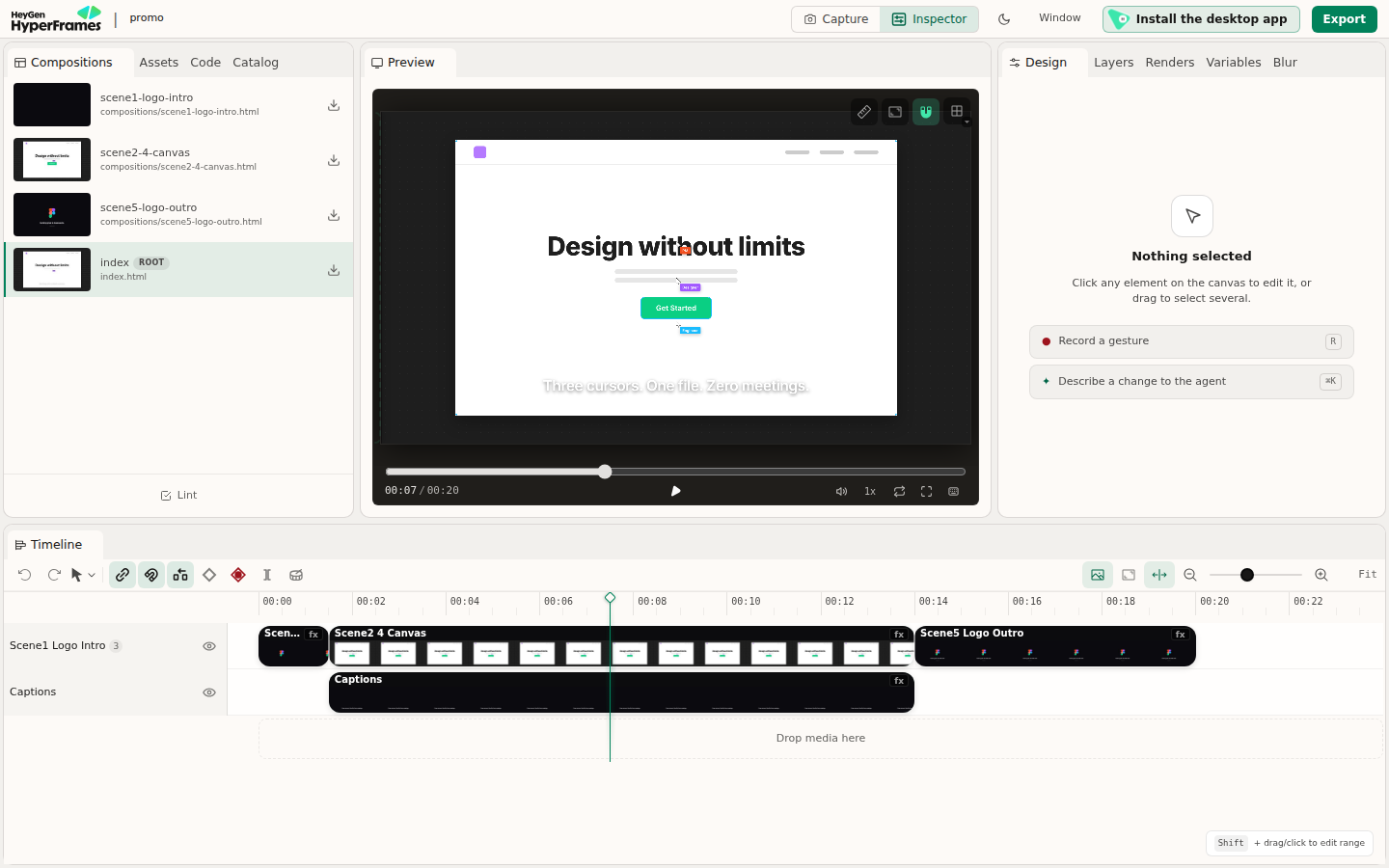
Export renders the video on the VM, not in your browser, into the
project's renders folder, and Renders lists the results to play or
download. To copy one to your computer:
scp 'my-hyperframes.exe.xyz:videos/promo/renders/*.mp4' .
Ignore Install the desktop app: that is HeyGen's Studio app, with an agent of its own on a paid plan. Here, the agents are on the VM.
Make a video with an agent#
HyperFrames' skills are installed for Claude Code, Codex and
Shelley. Open Shelley at
https://my-hyperframes.shelley.exe.xyz/, or SSH in and start Claude Code
(ssh my-hyperframes.exe.xyz, then cd ~/videos && claude), and ask:
Using /hyperframes, make a new project in ~/videos/launch: a 15-second
launch video for a coffee app called Brew, 1080p, warm colours, with
kinetic type and a logo reveal. Run hyperframes lint and check until they
pass, then show it in the editor.
The agent scaffolds the project with hyperframes init, writes the HTML,
looks at still frames to check its layout, and fixes what lint and
check find. In our test, Claude Code made an 8-second title card with two
variables in about two minutes.
The editor shows one project at a time, named in ~/videos/.studio. To
switch it to launch (the agent can do this too), on the VM:
echo launch > ~/videos/.studio && sudo systemctl restart hyperframes-studio
Reload the editor tab. In the editor, Describe a change to the agent copies a prompt about the selected element; paste it into your agent.
Render on the VM#
The CLI renders a project to a file. On the VM:
cd ~/videos/promo
hyperframes render --output ~/renders/promo.mp4
Useful flags: --quality draft for a quick look, --format webm (or
mov, gif, png-sequence, hls), --fps 60, --workers 4 for more
Chrome processes, and --variables '{"title":"Hi"}' for a composition
with variables. hyperframes render --help lists the rest. A render in
your SSH session stops if you disconnect; for long ones use tmux, the
editor, or the API, which keep going on the VM.
How fast it renders#
We rendered the 20-second, 1080p, 30 fps promo above (600 frames) on different VMs:
| VM | Command | Time | Per minute of video |
|---|---|---|---|
| 2 vCPU, 8 GB (the default VM) | hyperframes render |
87 s | about 4½ minutes |
| 2 vCPU, 4 GB | hyperframes render --no-low-memory-mode |
72 s | about 3½ minutes |
| 4 vCPU, 8 GB | hyperframes render |
88 s | about 4½ minutes |
| 4 vCPU, 8 GB | hyperframes render --no-low-memory-mode --workers 4 |
39 s | about 2 minutes |
| 4 vCPU, 16 GB | hyperframes render |
65 s | about 3¼ minutes |
| 4 vCPU, 16 GB | hyperframes render --workers 4 |
36 s | about 1¾ minutes |
| 4 vCPU, 16 GB | hyperframes render --workers 4 --quality draft |
26 s | about 1¼ minutes |
HyperFrames picks its workers cautiously, so on a VM with 4 or more vCPUs,
say --workers with the number of vCPUs. On 8 GB or less, it switches to
a slower low-memory mode with one worker; each worker is a Chrome using
about 250 MB, so --no-low-memory-mode is safe for a project like this
one. Heavy compositions (video clips, 3D, big images) take longer. To give
the VM more CPUs, on your computer:
ssh exe.dev resize my-hyperframes --cpu=4 --memory=16GB
On the Personal plan, a VM can grow up to your plan's capacity, which all your VMs share.
Render from anywhere#
The render API is HyperFrames' own producer server, on port 8000. It renders
projects in ~/videos into ~/renders, and fills in variables, so one
template makes many videos. It wants a bearer token, which Shelley created;
print it on your computer:
ssh my-hyperframes.exe.xyz sed -n s/^PRODUCER_AUTH_TOKEN=//p render-api/env
Requests from outside the VM must also get past exe.dev's login. Make a token for the VM's HTTPS proxy, on your computer:
ssh exe.dev ssh-key generate-api-key --vm=my-hyperframes --label=render-api
Send it as X-Exedev-Authorization, beside the API's token. The proxy
checks and removes the first; HyperFrames checks the second. This renders
the welcome card Claude made in our test, ~/videos/welcome, with a name
and colour:
curl -fsS https://my-hyperframes.exe.xyz/render \
  -H "X-Exedev-Authorization: Bearer $EXE_TOKEN" \
  -H "Authorization: Bearer $RENDER_TOKEN" \
  -H 'Content-Type: application/json' \
  -d '{"projectDir":"welcome","outputPath":"/home/exedev/renders/welcome-ada.mp4",
       "variables":{"name":"Ada","accent":"#2563eb"}}'
The request waits for the render (19 seconds for 8 seconds of video on 4
vCPUs) and answers with JSON, including "success":true and an
outputUrl such as /outputs/f0aab6b0-…. Download the video from it
within 15 minutes, with the same two headers:
curl -fsS -o welcome-ada.mp4 https://my-hyperframes.exe.xyz/outputs/f0aab6b0-… \
  -H "X-Exedev-Authorization: Bearer $EXE_TOKEN" \
  -H "Authorization: Bearer $RENDER_TOKEN"
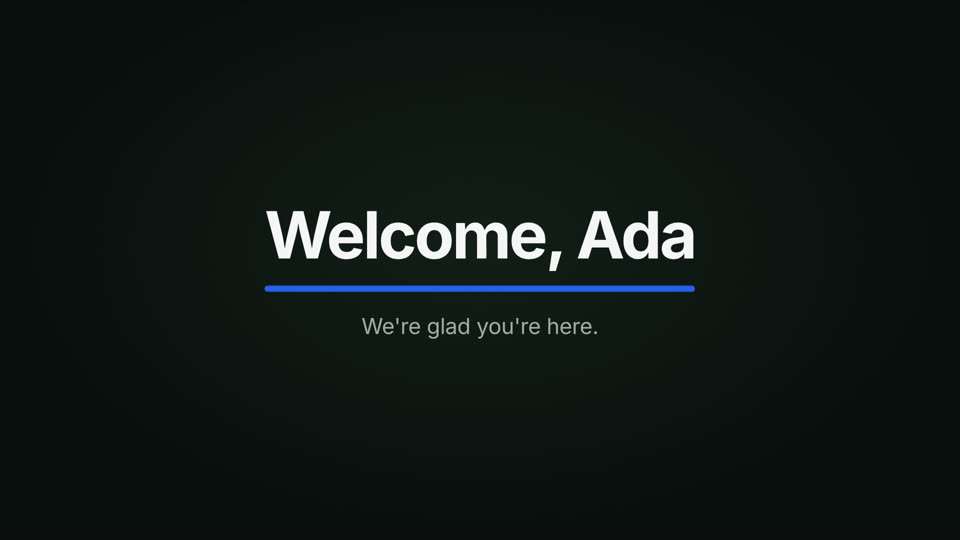
The file also stays in ~/renders on the VM. Other routes:
POST /render/stream reports progress as server-sent events,
GET /render/queue shows waiting jobs, and POST /lint checks a project.
outputPath must be an absolute path inside /home/exedev/renders, and
quality, fps, format and workers work as in the CLI. The API renders
one video at a time and queues the rest, so a CI job can fire many requests.
In GitHub Actions, keep both tokens as secrets.
Render many at once#
One VM renders one video at a time. For a batch, copy the VM: a copy has the same projects, services and tokens and is ready in about a second. On your computer:
ssh exe.dev cp my-hyperframes my-hyperframes-2
Its API is at https://my-hyperframes-2.exe.xyz/render. Copies on your
plan share its capacity, so they help most when the plan has CPUs to spare.
For capacity of their own, make sandboxes, billed by the
second while they run, and delete them when the batch is done:
ssh exe.dev cp my-hyperframes hf-batch-1 --sandbox --cpu=4 --memory=8GB
# ... send renders to https://hf-batch-1.exe.xyz/render ...
ssh exe.dev rm hf-batch-1
One long video across sandboxes#
HyperFrames can also split one video into chunks, render them on separate
machines, and stitch them back together; its AWS Lambda support is built
that way. hf-fanout
does the same with sandboxes. It plans the chunks on the VM, copies the VM
into one sandbox per chunk (the copies already have the plan on disk, so
nothing is uploaded), renders every chunk at once, fetches them, joins
them, and deletes the sandboxes. A helper,
hf-chunks.mjs, calls
HyperFrames' own plan, renderChunk and assemble functions.
| Video | One 2-vCPU VM | Sandboxes (2 vCPU each) |
|---|---|---|
| The 20-second promo | 87 s | 47 s on 4 |
| A 2-minute, 12-scene explainer | 6 minutes | 1½ minutes on 8 |
The frames match a normal render. Eight sandboxes for a minute and a half cost about two cents.
hf-fanout needs to create and delete VMs, so it needs an exe.dev API key. Keep the key off the VM: an HTTP proxy integration holds it and adds it to the VM's requests. On your computer, tag the VM, make a key that can only copy, reach, list and delete VMs with that tag, and give it to an integration only this VM can use:
ssh exe.dev tag my-hyperframes hf-render && \
ssh exe.dev ssh-key generate-api-key --label=hf-fanout --tag=hf-render \
    --cmds=cp,ls,rm,ssh --exp=1y --json | jq -r .token \
  | ssh exe.dev integrations add http-proxy --name hf-fanout \
    --target https://exe.dev --bearer - --attach vm:my-hyperframes
The sandboxes are copies, so they carry the tag, and the key can delete
them; the integration isn't attached to them, so they can't use it. On a
Work team, an admin first allows sandboxes with
ssh exe.dev team settings standalone all-users. Then, on the VM, install
hf-fanout and point it at the integration:
cd ~/render-api
curl -fsSLO https://exe-staging.dev/deploy/hyperframes/hf-chunks.mjs
sudo curl -fsSL -o /usr/local/bin/hf-fanout https://exe-staging.dev/deploy/hyperframes/hf-fanout.sh
sudo chmod 755 /usr/local/bin/hf-fanout
echo EXE_API=https://hf-fanout.int.exe.xyz > ~/render-api/fanout.env
curl -fsS -X POST https://hf-fanout.int.exe.xyz/exec -d ls | jq -r '.vms[].vm_name'
The last line should print this VM's name. Render the promo in 4 chunks:
hf-fanout promo 4
Expect planned 4 chunks, copied to 4 sandboxes, a line per chunk, and
rendered /home/exedev/renders/promo-….mp4. Give it up to 16 chunks and
a quality (draft, standard or high) as a third argument. Each sandbox
has 2 vCPUs and 4 GB unless fanout.env sets, for example,
SANDBOX_FLAGS="--cpu=4 --memory=8GB"; for a frame rate other than 30,
set HF_FPS. hf-fanout makes H.264 MP4s; HDR can't be split into chunks.
If hf-fanout is interrupted, it still deletes its sandboxes; check with
curl -fsS -X POST https://hf-fanout.int.exe.xyz/exec -d ls | jq -r '.vms[].vm_name'.
Revoke it all with ssh exe.dev integrations remove hf-fanout and
ssh exe.dev ssh-key remove hf-fanout.
Or AWS Lambda#
HyperFrames' own Lambda support splits videos the same way, across many more machines:
| exe.dev VM and sandboxes | HyperFrames on AWS Lambda | |
|---|---|---|
| One long video | one VM, or up to 16 sandboxes with hf-fanout | up to 256 chunks at once |
| Many short videos | one at a time per VM; add copies or sandboxes | many at once |
| Setup | this recipe | AWS account, SAM CLI, S3 bucket, Step Functions |
| Limits | your VM's CPU, memory and disk | 15 minutes per chunk; no HDR, HLS or 4:4:4 |
| Cost | your plan; sandboxes by the second | per GB-second of Lambda, plus S3 |
| Agent and editor | on the same VM, next to the files | elsewhere |
The usual split: write and preview on the VM, and render here until you need hundreds of videos in minutes. HeyGen also runs HyperFrames Cloud as a paid service.
Share it#
To let a teammate use the editor and agents, share the VM, on your computer:
ssh exe.dev share add my-hyperframes teammate@example.com
They sign in to exe.dev and open the same editor address. The editor has no
users of its own, so whoever is in can edit and export. For a script of
theirs, they make their own VM token, and you give them the API token.
Remove them with ssh exe.dev share remove my-hyperframes teammate@example.com.
The nuts and bolts#
Deploy sets all this up. The commands are here to do it by hand, and for later.
Install by hand
Create a VM#
The default VM works; a bigger one renders faster (see How fast it renders). On your computer, pick any free name:
ssh exe.dev new --name=my-hyperframes
ssh my-hyperframes.exe.xyz
The rest runs on the VM, as exedev. Commands use hostname, so your
VM can have any name.
Install Node.js and HyperFrames#
HyperFrames needs Node.js 22 or newer; the VM has none. Install Node.js 24,
then HyperFrames 0.9.70 and the headless Chrome it renders with (about 200
MB, in ~/.cache/hyperframes). The VM already has FFmpeg.
curl -fsSL https://deb.nodesource.com/setup_24.x | sudo -E bash -
sudo apt-get install -y nodejs
sudo npm install -g hyperframes@0.9.70
hyperframes telemetry disable
hyperframes browser ensure
hyperframes doctor
doctor should show ticks for Node.js, FFmpeg and Chrome. Crosses for
whisper-cpp, Kokoro and MusicGen are fine: they are optional, for
transcription, voiceover and music.
Make a first video#
Create the promo from HyperFrames' examples. init also installs
HyperFrames' skills into ~/.agents/skills and ~/.claude/skills, where
Claude Code, Codex and Shelley find them:
mkdir -p ~/videos ~/renders
cd ~/videos
hyperframes init promo --example product-promo --non-interactive
cd promo
hyperframes lint
hyperframes render --output ~/renders/promo.mp4
Expect 1.0 MB · 20.0s video · rendered in … after a minute or so.
Run the editor#
hyperframes preview serves the browser editor on localhost by default.
This wrapper serves it to exe.dev's proxy on port 3002, allows writes from
the VM's address (with the port; without it, Export is refused), and
shows the project named in ~/videos/.studio:
echo promo > ~/videos/.studio
sudo tee /usr/local/bin/hyperframes-studio >/dev/null <<'EOF'
#!/bin/sh
# HyperFrames' browser editor on port 3002, for the project in ~/videos/.studio.
export HYPERFRAMES_PREVIEW_HOST=0.0.0.0
export HYPERFRAMES_PREVIEW_ALLOWED_HOSTS="$(hostname).exe.xyz:3002"
exec hyperframes preview "$HOME/videos/$(cat "$HOME/videos/.studio")" \
  --foreground --no-open --port 3002
EOF
sudo chmod 755 /usr/local/bin/hyperframes-studio
sudo tee /etc/systemd/system/hyperframes-studio.service >/dev/null <<'EOF'
[Unit]
Description=HyperFrames browser editor
After=network-online.target

[Service]
User=exedev
Environment=HOME=/home/exedev
Environment=PATH=/usr/local/bin:/usr/bin:/bin
ExecStart=/usr/local/bin/hyperframes-studio
Restart=on-failure

[Install]
WantedBy=multi-user.target
EOF
sudo systemctl daemon-reload
sudo systemctl enable --now hyperframes-studio
until curl -fs -o /dev/null http://localhost:3002/; do sleep 2; done
systemctl is-active hyperframes-studio
Expect active. Port 3002 is private: exe.dev's proxy asks for login
before it reaches the editor.
Run the render API#
The API is the @hyperframes/producer package, pinned to the CLI's
version, in ~/render-api. Its settings go in ~/render-api/env, written
once with a random token and readable only by you:
mkdir -p ~/render-api && cd ~/render-api
[ -e package.json ] || npm init -y >/dev/null
npm install --save-exact @hyperframes/producer@0.9.70
if [ ! -e env ]; then
  touch env && chmod 600 env
  cat >> env <<EOF
PRODUCER_AUTH_TOKEN=$(openssl rand -hex 32)
PRODUCER_HOST=0.0.0.0
PRODUCER_PORT=8000
PRODUCER_PROJECTS_DIR=$HOME/videos
PRODUCER_RENDERS_DIR=$HOME/renders
PRODUCER_MAX_CONCURRENT_RENDERS=1
EOF
fi
sudo tee /etc/systemd/system/hyperframes-api.service >/dev/null <<'EOF'
[Unit]
Description=HyperFrames render API (@hyperframes/producer)
After=network-online.target

[Service]
User=exedev
WorkingDirectory=/home/exedev/render-api
EnvironmentFile=/home/exedev/render-api/env
ExecStart=/usr/bin/node node_modules/@hyperframes/producer/dist/public-server.js
Restart=on-failure

[Install]
WantedBy=multi-user.target
EOF
sudo systemctl daemon-reload
sudo systemctl enable --now hyperframes-api
until curl -fs http://localhost:8000/health; do sleep 2; done; echo
Expect a JSON health report. Port 8000 is the VM's main port, which
exe.dev serves at https://<vm>.exe.xyz/, private unless you make the VM
public. Keep it private: the token is the API's only other lock.
Connect the agents#
Point Claude Code and Codex at exe.dev's LLM integration, unless you've set them up with your own subscription already. Shelley needs nothing:
[ -e ~/.claude/settings.json ] || exeuntu configure claude
[ -e ~/.codex/config.toml ] || exeuntu configure codex
Check it#
Render the promo through the API, on the VM, and look for
"success":true. Without the token, the API refuses with 401:
curl -s -o /dev/null -w '%{http_code}\n' -X POST http://localhost:8000/render
auth="Authorization: Bearer $(sed -n 's/^PRODUCER_AUTH_TOKEN=//p' ~/render-api/env)"
curl -fsS http://localhost:8000/render -H "$auth" -H 'Content-Type: application/json' \
  -d '{"projectDir":"promo","outputPath":"/home/exedev/renders/promo-api.mp4","quality":"draft"}' \
  | grep -o '"success":[a-z]*'
ls -l ~/renders
systemctl is-enabled hyperframes-studio hyperframes-api
Expect 401, "success":true, two MP4s, and enabled twice.
Update
Read the release notes
first. Then, on the VM, with the new version in v:
v=0.9.70
sudo npm install -g hyperframes@$v
cd ~/render-api && npm install --save-exact @hyperframes/producer@$v
hyperframes browser ensure
sudo systemctl restart hyperframes-studio hyperframes-api
hyperframes --version
Your projects in ~/videos pin the version they were made with in their
package.json scripts; the hyperframes command uses the new one.
Something not working?
On the VM:
- The editor doesn't load:
journalctl -u hyperframes-studio -n 50. Check that~/videos/.studionames a folder in~/videos. - Export says writes are not allowed: open the editor at the VM's own
address, with
:3002. The wrapper allows the VM's name when it starts, so copies get theirs; after a rename,sudo systemctl restart hyperframes-studio. - The API answers 401: send both headers, the VM token in
X-Exedev-Authorizationand the API token inAuthorization. Basic auth for the proxy doesn't work here, because it takes theAuthorizationheader the API needs. - The API says outputPath must be inside the renders directory: use an
absolute path under
/home/exedev/renders. - A render fails or stalls:
journalctl -u hyperframes-api -n 100, andhyperframes doctor. Runhyperframes checkin the project for layout problems. If memory runs out, use fewer--workersor a bigger VM.
Frequently asked questions#
What is HyperFrames?
An open-source framework from HeyGen that renders HTML to video. A composition is an HTML page with timed elements and animations (CSS, GSAP, Lottie, Three.js and more); HyperFrames steps through it frame by frame in headless Chrome and encodes the frames with FFmpeg, so the same file always makes the same video. It's built for AI agents, which already write HTML well.
Does it need a GPU?
No. Chrome draws the frames in software on the VM's CPU. A 20-second 1080p promo took 87 seconds on the default 2-vCPU VM and 36 seconds on 4 vCPUs. See How fast it renders.
Do I need a HeyGen account or API key?
No. The CLI, editor, renderer and render API are all open source and run on the VM. Claude Code, Codex and Shelley get their models from exe.dev's LLM integration, with no key on the VM. HeyGen's paid features (its desktop Studio app's built-in agent, HyperFrames Cloud, generated avatars and voices) are separate and not needed here.
Who can see my videos?
Only you and people you share the VM with. The editor is on port 3002, which exe.dev's proxy keeps behind login; it has no login of its own, so anyone you share the VM with can edit and export. The render API also wants its own token, so a VM token alone can't start renders.
How much does it cost?
HyperFrames is free under Apache-2.0. You pay for your exe.dev plan; rendering uses capacity you already have, with no per-render or per-minute fee. Burst renders on sandboxes are metered by the second.
Should I use AWS Lambda instead?
For hundreds of videos at once, maybe: HyperFrames can split one render into up to 256 Lambda chunks. A VM is simpler for steady work: no AWS account, S3 bucket or 15-minute limit, and HDR, HLS and every output format work. For a long video, the VM can split it across sandboxes the way Lambda does. See Render many at once.
Published Nov 21, 2026 · Updated Nov 21, 2026 · tested end to end Nov 20, 2026 · Markdown · manifest.json · Something wrong? Tell us